
LeashLog app icon

LeashLog on iPhone

Put LeashLog on your Home Screen

Then LeashLog opens full screen, like any other app. It takes about a minute in Safari.

  1. Open LeashLog in Safari, then tap ···

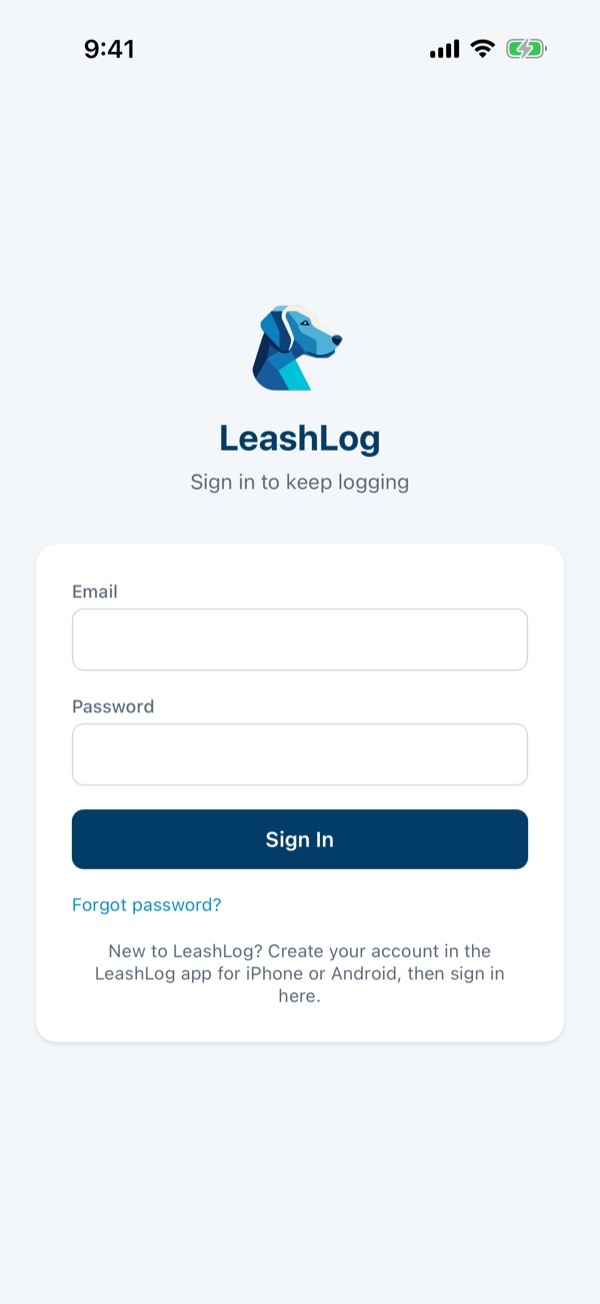
    Go to app.leashlog.com in Safari. You'll land on the sign-in page. Tap ··· next to the address bar.

    https://app.leashlog.com

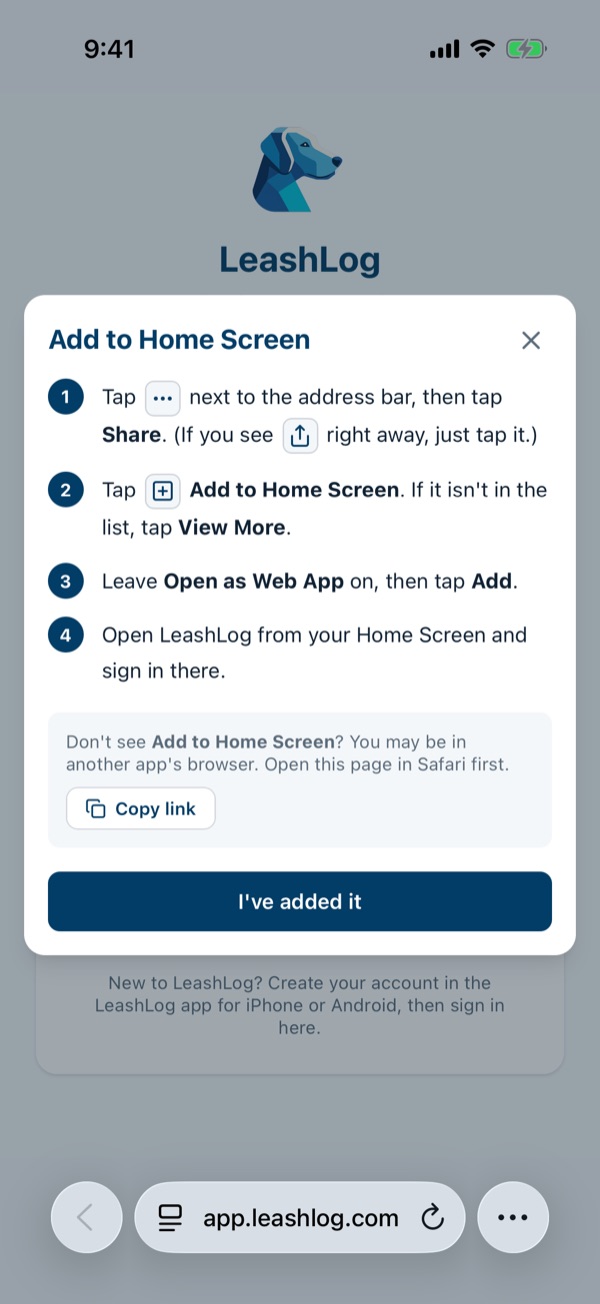
    The card at the top of the page has a Show me how button with these same steps.
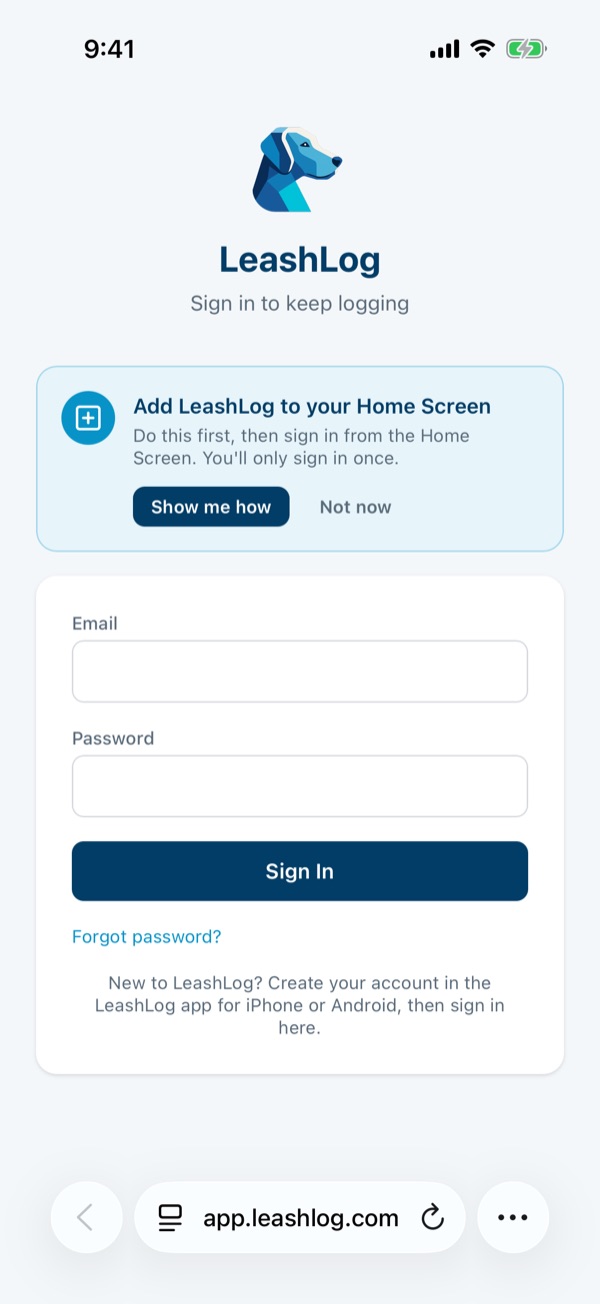
    Safari showing the LeashLog sign-in page. The More button next to the address bar is circled.
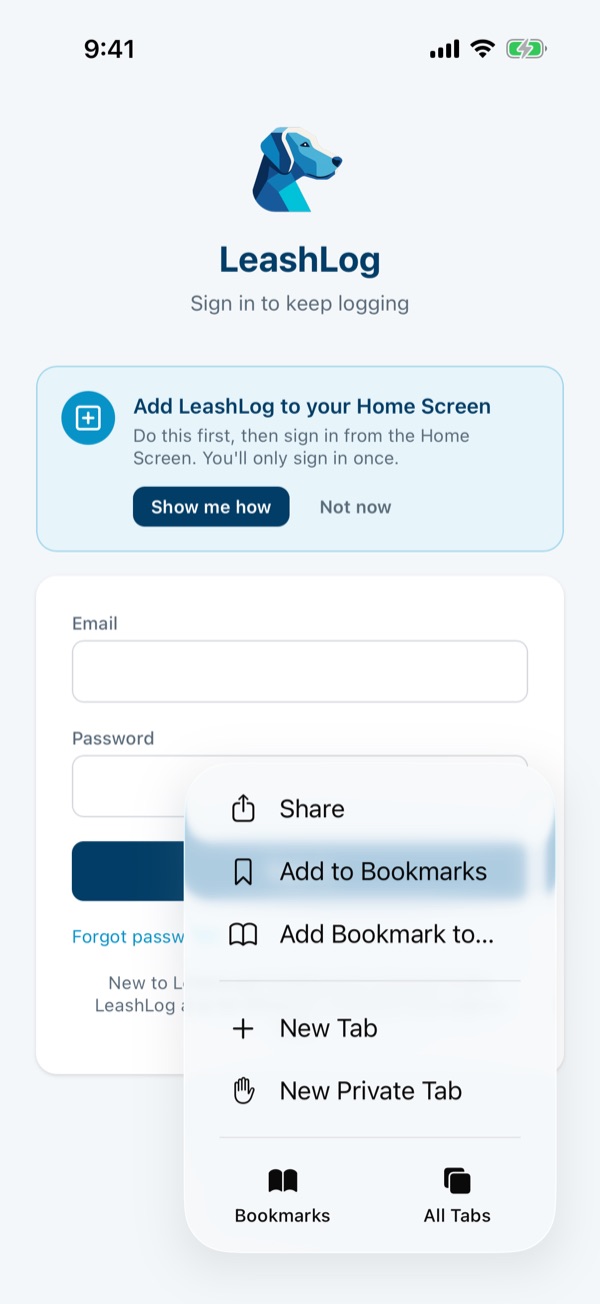
  2. Tap Share

    It's the first item in the menu.

    Safari's More menu with Share circled at the top.
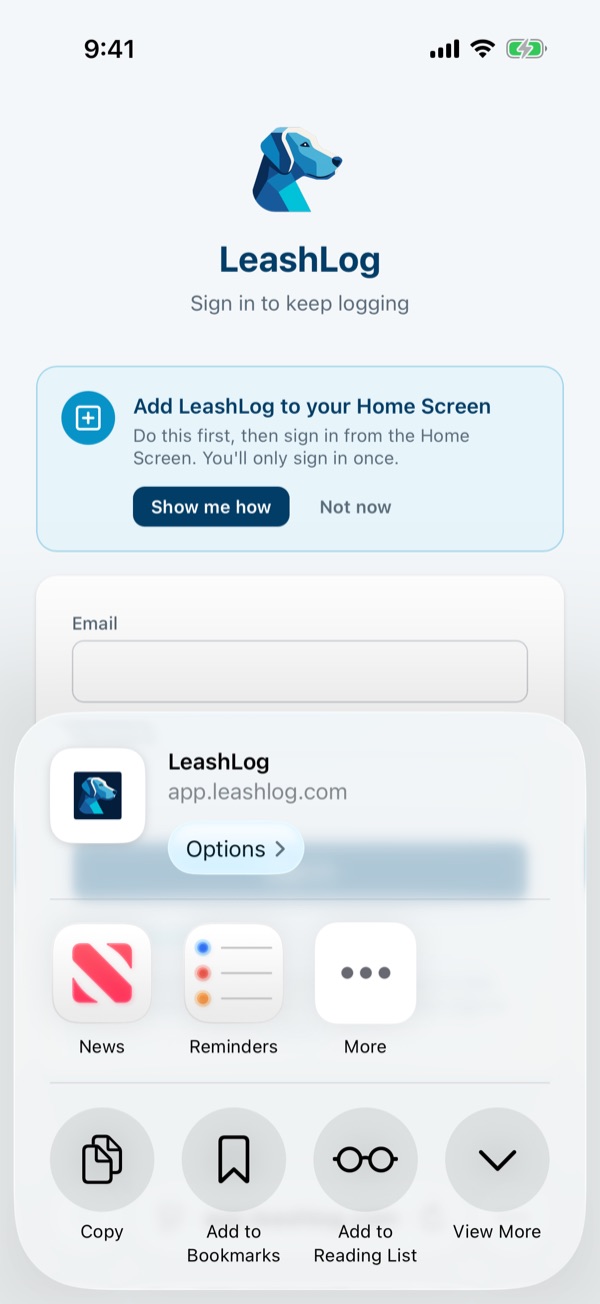
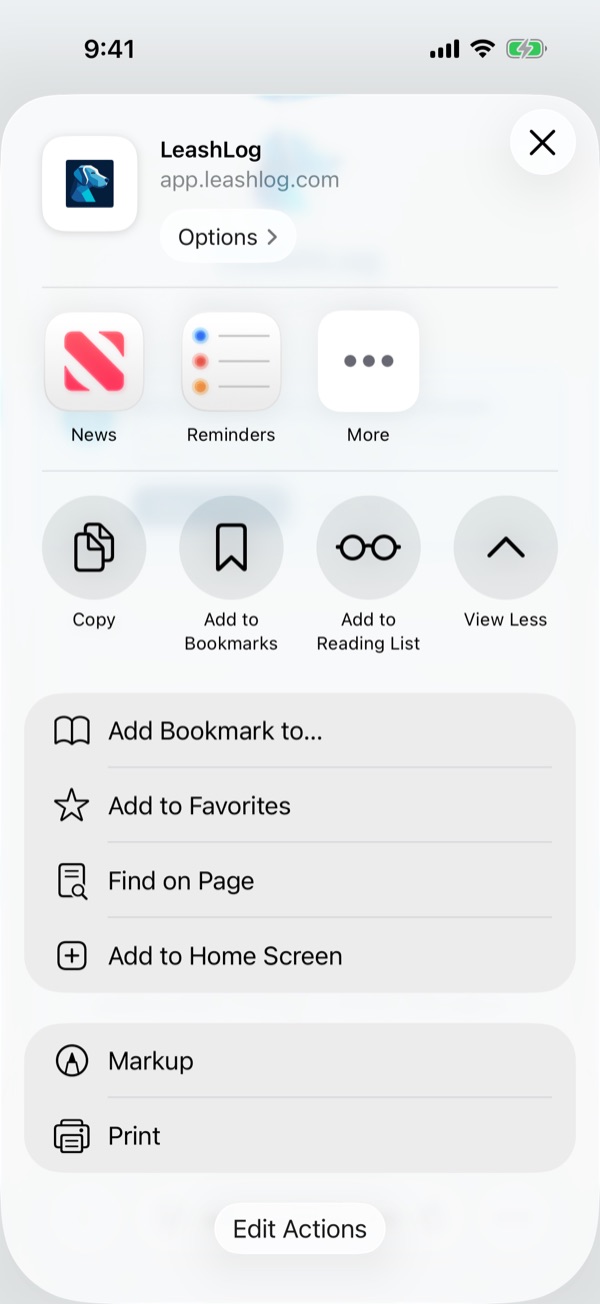
  3. Tap View More, then Add to Home Screen

    View More is the last round button in the row. It opens the full list, where you'll find Add to Home Screen.

    The Share sheet with the View More button circled.
    First, View More
    The full Share list with Add to Home Screen circled.
    Then, Add to Home Screen
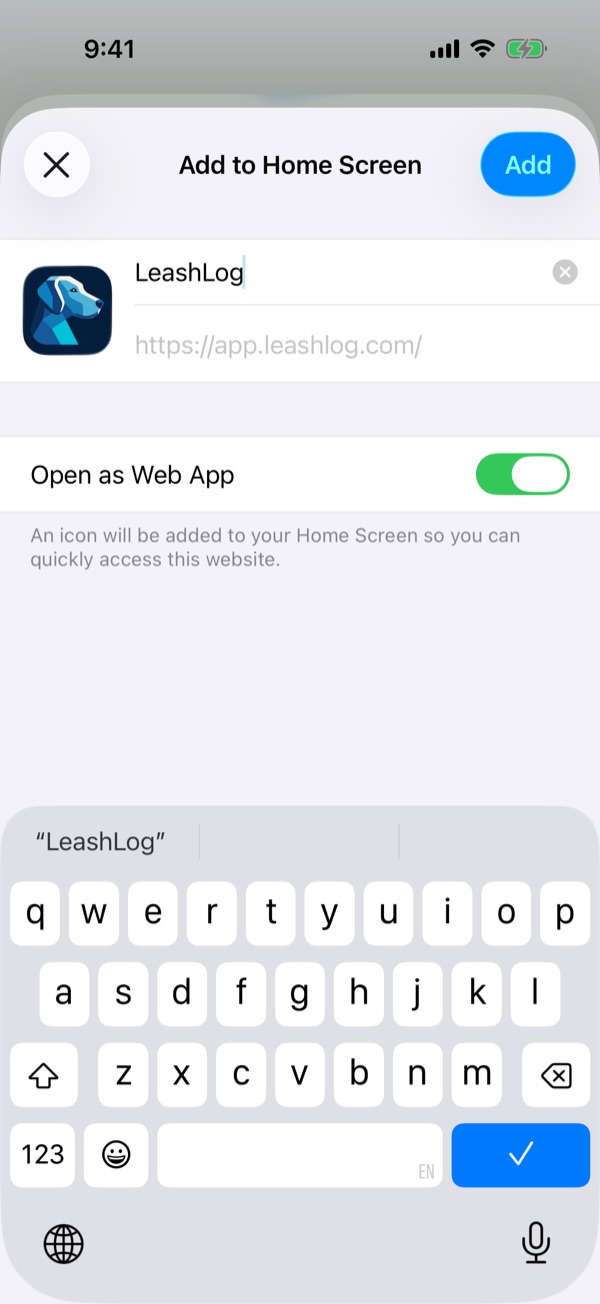
  4. Leave Open as Web App on, then tap Add

    The name is already filled in as LeashLog. Keep Open as Web App switched on and tap Add at the top right.

    The Add to Home Screen sheet with the name LeashLog, the Open as Web App switch on and circled, and the Add button circled.
  5. Open LeashLog from your Home Screen and sign in

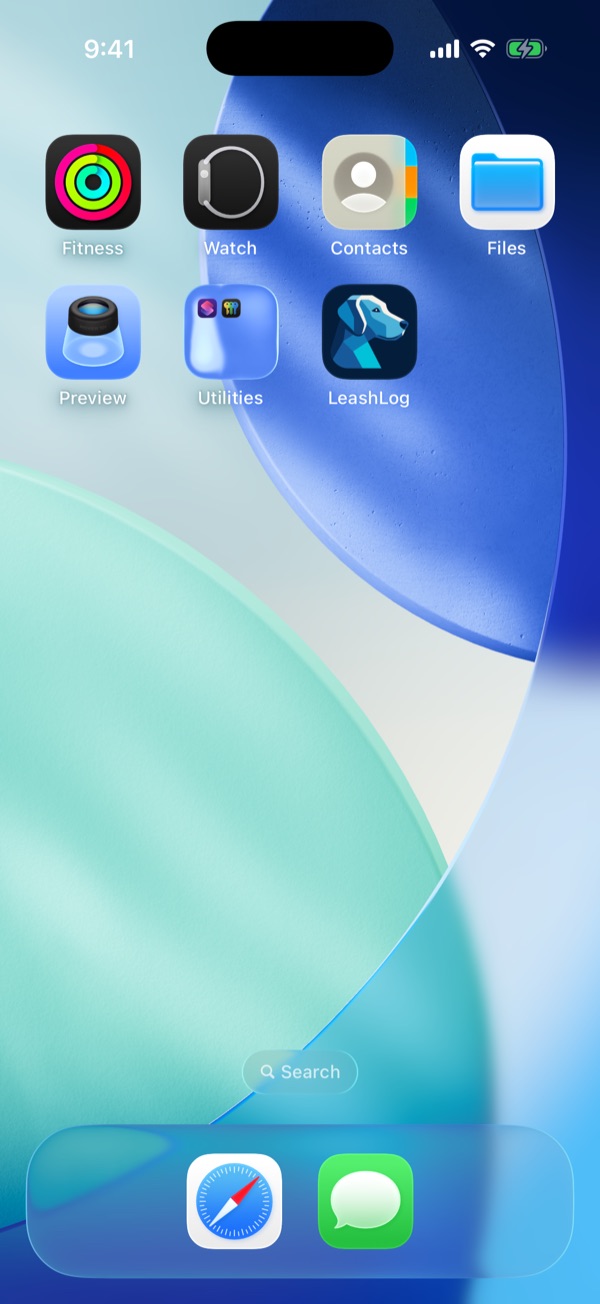
    Your Home Screen opens with the new LeashLog icon. Tap it, then sign in with your LeashLog email and password. From now on, open LeashLog from this icon.

    The iPhone Home Screen with the new LeashLog icon circled.
    Your Home Screen
    LeashLog open full screen on its sign-in page, without Safari's address bar.
    LeashLog, full screen

LeashLog still open in Safari?

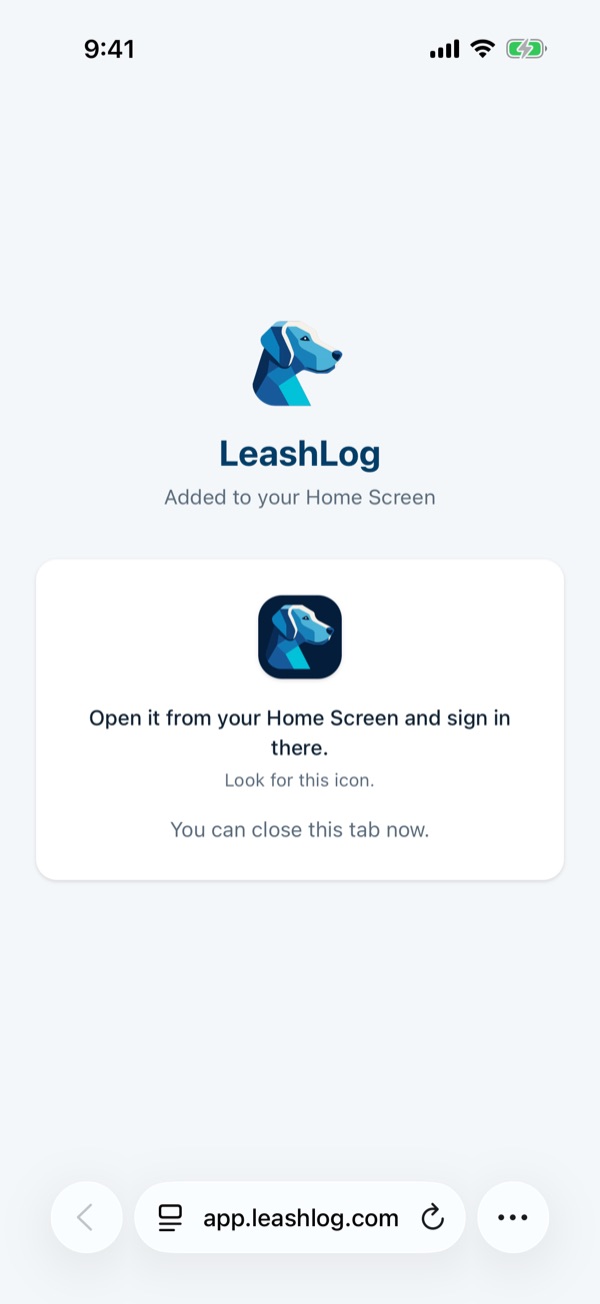
Tap Show me how on the card, then I've added it. Safari then shows Added to your Home Screen and may close the tab by itself. That way you only have one LeashLog open.

LeashLog's own Add to Home Screen steps in Safari, with the I've added it button circled.
Tap I've added it
Safari showing Added to your Home Screen: open it from your Home Screen and sign in there.
Safari points you to the app

If your screen looks different

  • iPad: Share is at the top right of Safari. If you don't see it, tap ··· first.
  • iOS 18 or earlier: tap Share at the bottom of the screen, scroll down to Add to Home Screen, then tap Add.
  • No Add to Home Screen in the list? You're probably in another app's browser, such as Gmail or Facebook. Copy the address and open it in Safari.
  • Already signed in to LeashLog in Safari? That's fine. Sign in once more in the Home Screen app.

Screens from Safari on iOS 26.5 (iPhone 17), October 2026.